
How to Add llms.txt to Your WordPress Site in 2026 (Step by Step)
Does WordPress create llms.txt automatically?
No. WordPress auto-generates robots.txt and sitemaps, but not llms.txt. You need to create it manually and upload it to your root directory.
How long does it take?
About 30–60 minutes for most sites. Generate the file with a free tool, upload via FTP or a file manager plugin, done.
Will it affect my SEO or site speed?
No. It’s a static plain-text file. No database queries, no page speed impact, no effect on Google rankings.
Adding a new file to your WordPress site sounds deceptively simple — until you realize the instructions online assume you’re comfortable with FTP, root directories, and server paths. Most people aren’t, and there’s no shame in that.
I’ve walked through this process on a few different setups now: shared hosting, managed WordPress, and once on a staging environment where the root directory was in a completely unexpected location. The experience varies more than it should. So this guide covers all the main methods — FTP, cPanel, a file manager plugin, and a dedicated WordPress plugin. Pick whichever fits your setup.
Before anything else though — let’s cover what llms.txt actually is. Because the “how” makes a lot more sense once you understand the “why.”
What Is llms.txt and Why Does WordPress Need It in 2026?
llms.txt is a plain Markdown file you place at your domain root that tells AI systems — ChatGPT, Claude, Perplexity, and others — which pages on your site are most worth reading. Think of it as a curated reading list for AI, not a replacement for your sitemap. You can read the full background in our Complete AI Visibility Guide.
The reason it matters in 2026 specifically: AI-referred traffic to websites is growing fast, and AI systems don’t crawl your site the way Google does. They fetch pages on-demand, and they prioritize what they can easily parse. If your most important content is buried in JavaScript-heavy templates or linked three levels deep, it often gets skipped entirely. llms.txt puts your best pages front and center.
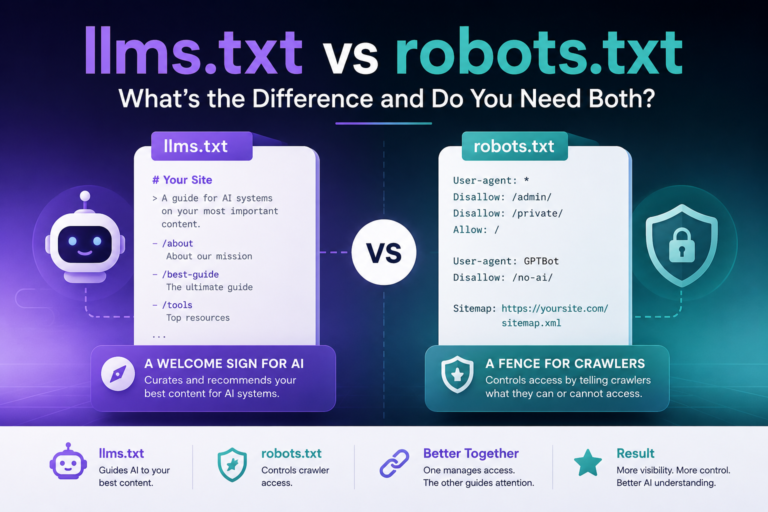
WordPress doesn’t generate it automatically because llms.txt isn’t part of any existing web standard WordPress implements. The platform auto-creates robots.txt and XML sitemaps because those are decades-old crawling conventions. llms.txt is different from robots.txt — it’s newer, AI-specific, and still an emerging convention rather than an enforced requirement. So WordPress hasn’t shipped native support yet, and as of 2026, most SEO plugins haven’t either.
That means you need to do it manually. It’s not hard — it just requires knowing where to put the file.
Before anything else — if you haven’t created your llms.txt content yet, start there. The upload takes five minutes. Figuring out what to put in the file takes longer.
Step 1 — Decide What Goes in Your llms.txt
llms.txt: What to include
An llms.txt file is a curated Markdown list of your most important pages. Not every page — just the ones you most want AI systems to find and read. Aim for 20 to 30 entries maximum. If you also want to create a companion llms-full.txt or agents.md file, our generator handles all three at once.
Good candidates: cornerstone blog posts, your most-visited guides, key product or service pages, your about page, important FAQ pages. Bad candidates: tag archives, author pages, login pages, anything behind a paywall.
The descriptions in llms.txt are read by AI systems, not ranked by Google. Write naturally — a single clear sentence saying what a page actually covers works better than keyword-stuffed copy.
Step 2 — Upload Your llms.txt to WordPress
Where the file must go
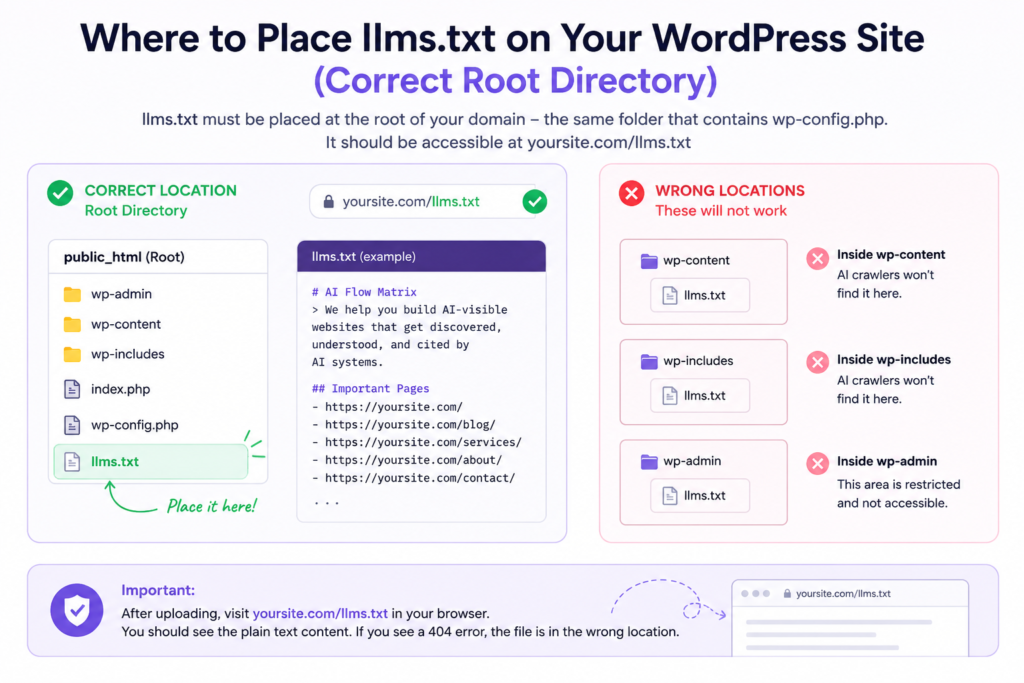
llms.txt must sit at your domain root — the same directory that contains wp-config.php, wp-login.php, and your existing robots.txt. It should be accessible at yoursite.com/llms.txt.
Do not upload llms.txt inside /wp-content/, /themes/, or any subdirectory. AI systems look for it specifically at the root. If it’s in the wrong place, it simply won’t be found — and you’ll get a 404 with no warning.
There’s one extra step almost everyone skips: adding a discovery signal to your <head>. Without it, some AI systems won’t find the file even if it’s in the right place. We cover this in Step 3 — don’t skip it.
Via FTP (FileZilla or similar)
Connect to your server using your hosting FTP credentials. Navigate to the root directory — you’ll recognize it by the presence of wp-config.php. Drag your llms.txt file from your desktop into that folder. Done.
One thing I’ve seen trip people up: on some shared hosts, there’s a folder called public_html inside the root. That’s usually where WordPress lives — and that’s where your file goes, not one level above it.
Via cPanel File Manager
Log into your hosting cPanel and open File Manager. Navigate to public_html (or the folder your WordPress site lives in). Click Upload, select your llms.txt file, and confirm. Verify by visiting yoursite.com/llms.txt in your browser.
If you’re on managed WordPress hosting like WP Engine or Kinsta, File Manager access can be restricted. In that case, use Method C below — the plugin approach works on managed hosts without needing server access.
Via WP File Manager Plugin
If you don’t have FTP access, install the free WP File Manager plugin from the WordPress repository. Once active, go to WP File Manager in your dashboard, navigate to the root directory, and upload your file there. No FTP credentials needed.
WP File Manager gives direct server access from your WordPress dashboard — which is convenient but also a security risk if your admin account is ever compromised. Use it for this task, then consider deactivating it until you need it again. Do not leave it active with weak admin credentials.
WordPress Plugins That Support llms.txt
Plugin support overview (as of 2026)
Native llms.txt support in WordPress plugins is still limited. The ecosystem is catching up. Here’s where the main options stand right now:
By WebDevStudios. Auto-generates llms.txt from your published posts and pages. Limited formatting control, but useful for sites with lots of content that need a starting point. Free on the WordPress repository.
No built-in llms.txt generation as of 2026. RankMath handles sitemap, robots.txt, and schema markup well — but llms.txt requires a separate step. You can use its Header/Footer Scripts feature to add the discovery meta tag.
Same situation as RankMath. Yoast manages your robots.txt and sitemaps from the dashboard, but doesn’t touch llms.txt. Upload manually and use Yoast’s custom header output for the meta tag.
No llms.txt support currently. AIOSEO does offer a robots.txt editor within the dashboard, which is handy for managing AI crawler rules — but llms.txt needs to be handled separately.
For most sites, manual upload gives you more control than any current plugin. The WebDevStudios plugin auto-generates content, but auto-generated llms.txt files tend to be unfocused — they include too many pages with no context. Curating your own 20–30 entries takes an hour and produces a much better file.
Step 3 — Add the Discovery Meta Tag (Don’t Skip This)
This is the step most guides don’t mention. And it’s the reason some sites upload a perfectly good llms.txt and still wonder why nothing seems to happen.
As AI crawlers evolve in 2026, having the file at the right URL isn’t always enough. Adding a single tag to your <head> tells AI systems explicitly where to find it — without them having to guess.
In WordPress, you can add this through:
RankMath: General Settings → Header/Footer Scripts → paste the tag in the Header Scripts field. Takes about 30 seconds.
Yoast / AIOSEO: Both have a custom header code field in their advanced settings. Add the tag there.
Theme functions.php: Add it via the wp_head() hook. Always use a child theme or the Code Snippets plugin — otherwise a theme update will wipe it.
Step 4 — Verify It’s Working
This part takes thirty seconds. Open a private/incognito browser window and visit yoursite.com/llms.txt. You should see the raw Markdown content of your file — plain text, no styling.
If you see a 404, the file is in the wrong directory. If you see a blank page, check that the file isn’t empty or that your server isn’t stripping the content-type.
yoursite.com/llms.txt loads and shows plain Markdown text ✓
File is in the same directory as wp-config.php ✓
Discovery meta tag added to <head> ✓
No gated or login-required pages listed ✓
Quarterly review reminder set ✓
❓ Frequently Asked Questions





One Comment