
Frames vs Ingredients in Google Flow: What Each Does and When to Use It
Updated November 16, 2026 · Covers Omni Flash 1.2, released in Flow on November 5.
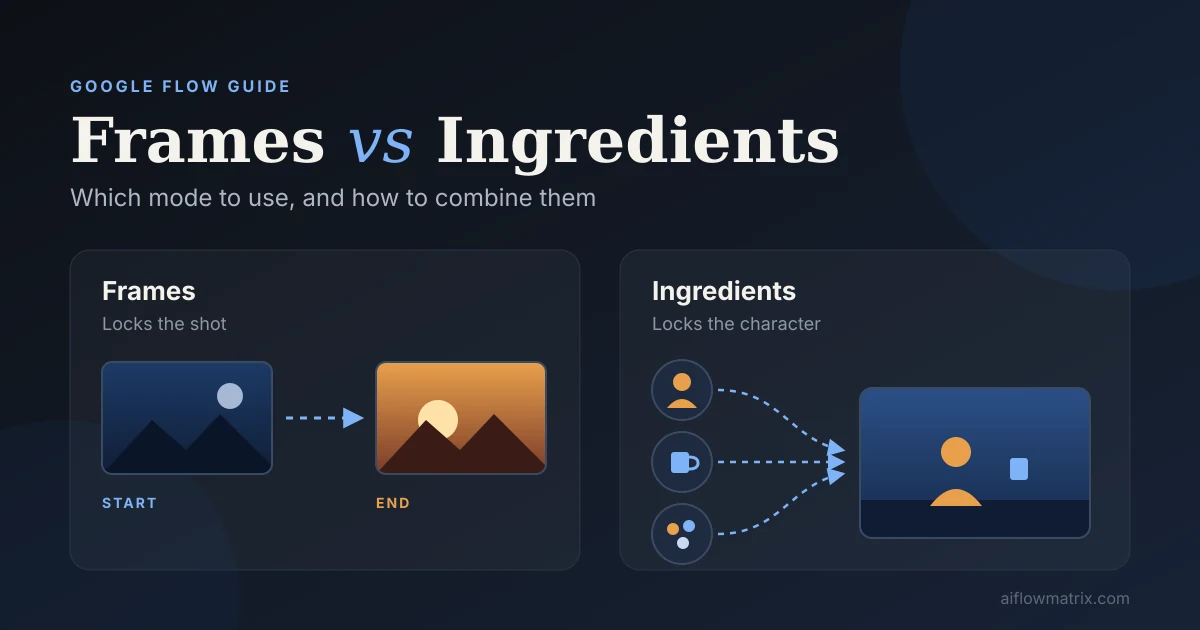
Frames vs Ingredients in Google Flow comes down to what you need to lock. Frames to Video locks the shot: you give Flow the first frame, and optionally the last, and it animates what happens in between. Ingredients to Video locks the subject: you give Flow reference images of a character, object or style, and it builds a new shot around them. Use Frames for an exact composition, a product shot or a transition. Use Ingredients to keep the same character across several shots. To get both, make a still with your ingredients first and use it as the start frame.
- Frames input
- Start image, optional end
- Ingredients input
- Reference images
- Frames locks
- Composition
- Ingredients locks
- Character / style
- Default model
- Omni Flash 1.2
- Clip length
- 3–10s (15s paid)
- Frames on mobile
- No, web only
- Cost (720p)
- 3 credits / second
- 1What Frames to Video does
- 2What Ingredients to Video does
- 3The difference, side by side
- 4Which models support each, and what they cost
- 5How to use each one, step by step
- 6How to combine them, and what goes wrong
Both modes sit in the same place: open the prompt box in Google Flow, set it to Video, and you’ll see a choice between Frames and Ingredients next to plain text-to-video. They look like two ways to add an image to a prompt. They aren’t. One controls where the camera starts and ends; the other controls who or what appears.
What Is Frames to Video?
Frames to Video starts a clip from an image you supply. You upload or generate a start frame, write a prompt describing the motion, and Flow animates forward from that image. You can also add an end frame, and Flow works out the movement that gets from one to the other.
This is the mode to reach for when the picture has to be exact: a product sitting in a specific position, a logo reveal, a camera push from outside a building to inside it. It is also how you join shots cleanly. Use the last frame of one clip as the first frame of the next and the cut lines up.
What Is Ingredients to Video?
Ingredients to Video works from reference images, which Flow calls ingredients. An ingredient can be a character, an object or a visual style. You upload them, or generate them in Flow’s image mode, then write a prompt saying how they come together in the scene.
Flow doesn’t copy the reference into the first frame. It builds a new shot from your prompt and keeps the ingredients recognizable inside it. That is why this mode is the main tool for character consistency: the same face, hair and outfit in a kitchen shot, a street shot and a close-up.
Google says Omni Flash 1.2, the model that became the default on November 5, follows character and style references more closely than the version before it. It also claims faces, costumes and packaging text now hold across camera angles. That is Google’s claim; check it on your own references before you plan a sequence around it.
Frames vs Ingredients in Google Flow: The Difference
| Frames to Video | Ingredients to Video | |
|---|---|---|
| What you give it | A start image, and optionally an end image | Reference images of characters, objects or a style |
| What it controls | The exact composition of the first (and last) frame | Who or what appears, and how it looks |
| What it leaves open | How the subject looks in other shots | Exact framing and camera position |
| Best for | Product shots, transitions, joining clips | Recurring characters, brand style across shots |
| Weak at | Very different start and end frames | Too many references at once |
| Where it works | Web only (Omni Flash 1.2) | Web and app |
A simple way to decide: if you can already picture the exact frame, use Frames. If you can picture the character but not the shot, use Ingredients.
What Flow is, the models inside it and how the agent, credits and tools fit together.
Which Models Support Frames and Ingredients
Not every model in Flow supports both modes, and three of them retire on December 5, 2026. This is what Google’s models page lists now:
| Model | Frames to Video | Ingredients to Video |
|---|---|---|
| Omni Flash 1.2 (default) | 3–10s, up to 15s with a subscription; web only | 3–10s, up to 15s with a subscription |
| Veo 3.1 Lite | 4, 6 or 8s; first frame or first + last | 8s only |
| Veo 3.1 Fast (retiring Dec 5) | 4, 6 or 8s; first frame or first + last | 8s only |
| Veo 3.1 Quality (retiring Dec 5) | 4, 6 or 8s; first frame or first + last | Not supported |
| Omni Flash 1.1 (retiring Dec 5) | 4–10s; first frame or first + last | 4–10s |
The images themselves, whether a start frame or an ingredient, come from Flow’s image models if you generate them there: Nano Banana 2 Lite is the free default, with Nano Banana 2.1 and Nano Banana Pro as stronger options.
What Frames and Ingredients Cost in Credits
Neither mode has a surcharge. You pay for the video the model produces, the same as text-to-video.
- Omni Flash 1.2: 1 credit per second at 360p and 3 per second at 720p, up to 10 seconds. Seconds 11 to 15 cost double, and only subscribers can go past 10. An 8-second 720p clip is 24 credits; the same clip at 360p is 8.
- Veo 3.1 Lite: 10 credits per clip, or 5 on Google AI Ultra.
- Outputs: x2 or x4 generates two or four videos and costs two or four times as much.
Generations that fail aren’t charged. Flow shows the exact cost in the prompt box before you generate, and that number is the one to trust, because Google changes these rates often.
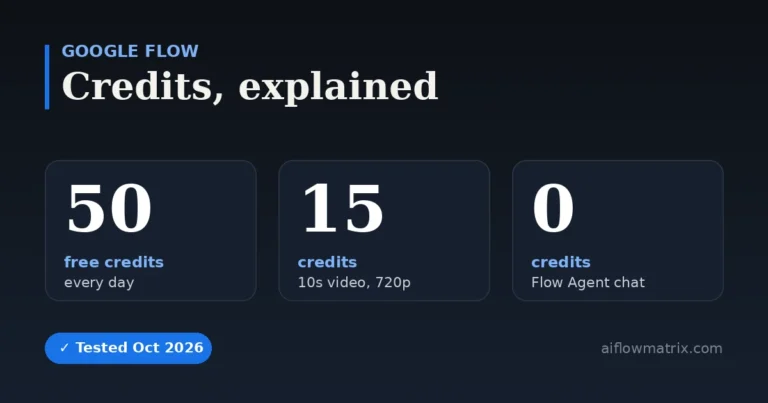
How many credits each plan gives and what every model and action costs.
How to Use Frames to Video
- Open Flow on the web. Frames to Video on Omni Flash 1.2 isn’t in the mobile app.
- Set the prompt box to Video, then Frames.
- Add a start frame. Upload an image or pick one you generated in the project. The picker shows the latest version of an image, so save an earlier version to the project first if that’s the one you want.
- Add an end frame if you need one. Keep the camera position and lighting close to the start frame.
- Describe the motion, not the picture. The frames already show what’s in the shot. Write what moves and how fast, for example “the camera pushes in slowly as the light warms over six seconds.”
- Draft at 360p, x1. Check the cost in the prompt box, generate, and render at 720p or upscale only the take you keep.
How to Use Ingredients to Video
- Prepare clean references. For a character: front-facing, evenly lit, plain background, full outfit visible. A second image at a three-quarter angle helps.
- Set the prompt box to Video, then Ingredients, and add your references.
- Use two or three ingredients per shot. One character, one object, one style is a sensible ceiling. With more, the model has to guess which reference matters.
- Name each ingredient the same way every time, for example “the woman in the yellow raincoat”, and keep that wording identical across prompts.
- Don’t re-describe what the reference shows. Describing her hair again in the prompt invites the model to change it.
- Generate x2 for character shots and keep the closer likeness.
How to Combine Frames and Ingredients
You can’t put both into one generation; they’re separate modes. You can chain them, and this is the most reliable way to get an exact composition and a consistent face at once:
- Generate a still image in Flow’s image mode, using your character ingredients and describing the exact shot you want.
- Fix the still until the composition is right. Edits on an image cost far less than regenerating video.
- Use that still as the start frame in Frames to Video and describe the motion.
- For the next shot, take the last frame of this clip as the next start frame, or go back to Ingredients if the camera position changes completely.
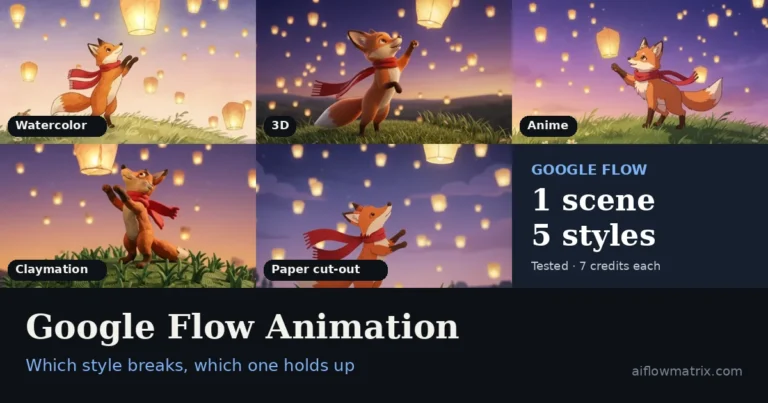
Making animated clips in Flow, where a fixed style across shots matters most.
Common Problems and Fixes
The clip jumps to the end frame at the last moment
The start and end frames are too different. Make the end frame closer to the start, or describe the change over time in the prompt so the model spreads it across the clip.
The character drifts after a few shots
Each new generation adds a little drift. Go back to the original ingredient images instead of using a frame from a recent clip as the reference, and review the sequence every two or three clips. If you extend a shot, expect faces to hold for three or four extensions before it’s better to cut to a new shot.
Flow ignores one of the ingredients
There are probably too many, or the prompt doesn’t say what that ingredient is doing. Cut down to two or three and give each one a role in the prompt.
Extend isn’t available
Veo Extend retired on November 5. Extending now uses Omni Extend on Omni Flash 1.2, which needs a Google AI Plus, Pro or Ultra subscription.
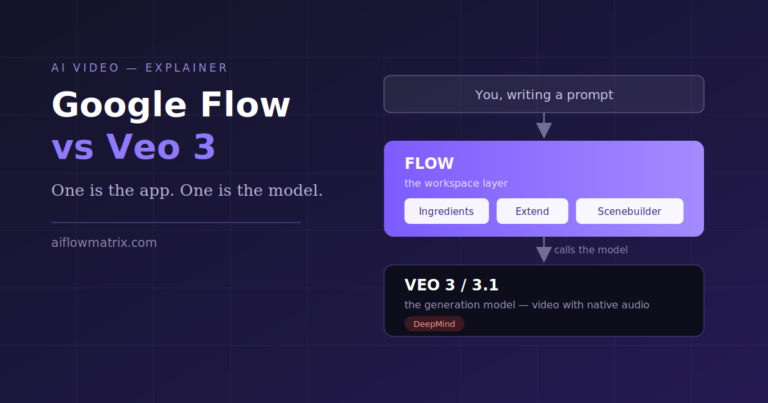
Flow is the studio, Veo is a model inside it. What that difference means in practice.
Frames and Ingredients FAQ
What is the difference between Frames and Ingredients in Google Flow?
Frames to Video starts a clip from an image you supply, and can also end on one, so you control the exact composition. Ingredients to Video takes reference images of characters, objects or a style and builds a new shot around them, which helps keep a character the same across shots.
Can I use Frames and Ingredients in the same clip?
Not in one generation: they are separate modes in the prompt box. The usual workaround is to generate a still image with your character ingredients first, then use that image as the start frame in Frames to Video.
How many ingredients can I add in Google Flow?
Google’s current help page doesn’t state a maximum. When Flow launched, Google said up to three per prompt. In practice two or three clear references work best; with more, the model has to guess which one matters.
Which models support Ingredients to Video?
Omni Flash 1.2 supports it at 3 to 10 seconds, or up to 15 seconds with a Google AI subscription. Veo 3.1 Lite supports it at 8 seconds only. Veo 3.1 Quality does not support ingredients.
Does Frames to Video work in the Google Flow mobile app?
Google’s help page lists Frames to Video on Omni Flash 1.2 as web only, at flow.google.com. Ingredients to Video has no such note.
How long can a Frames or Ingredients clip be?
On Omni Flash 1.2, 3 to 10 seconds for everyone and up to 15 seconds for Google AI Plus, Pro and Ultra subscribers. On Veo 3.1 Lite, Frames clips run 4, 6 or 8 seconds and Ingredients clips 8 seconds.
Sources: Google Flow Help: models and supported features · Google Flow Help: manage your credits · Google: 5 tips for using Flow · The Next Web: Gemini Omni 1.2 Flash · Dreamdrive: Flow Ingredients and Scenebuilder. Feature and credit details checked November 16, 2026.


5 Comments