
Google Flow Agent: What It Actually Does (I Tested It)
Updated November 16, 2026 · Tested November 7, 2026 on a free Google Flow account, one project, four tests. Model advice updated for Omni Flash 1.2.
Flow Agent is the chat assistant inside Google Flow. It plans shots, writes prompts, picks the model, generates images and video, and organizes your project files. Chatting with it is free (with a daily query limit); only the media it generates costs credits. In my tests, the best feature was Agent Instructions: I set a style and character once, asked for a new scene without describing either, and got both right. The weak spots were speed (about two minutes per reply) and how much of the project it actually took into account.
- Where
- Prompt box → Agent
- Platforms
- Web and PC only
- Chat cost
- Free, daily limit
- Media cost
- Normal Flow credits
- Reply time (my test)
- ~2 minutes
- 4s video (my test)
- ~4 minutes
- Best feature
- Agent Instructions
- Sessions
- Saved per project
- 1What Flow Agent can do, according to Google
- 2The two settings worth changing first
- 3Test: does it remember earlier work?
- 4Test: renaming and organizing files
- 5Test: Agent Instructions, the feature I’d use most
- 6Speed, cost and limits
When I wrote my Google Flow overview, Flow Agent was the part I described most from Google’s announcement and least from my own use. This time I opened the project from my animation test and gave the Agent four jobs.
What Flow Agent Can Do
Google’s help page lists these capabilities:
Plan
Brainstorm ideas, storyboards, mood boards and prompts.
Generate
Make images and videos, choose the model, batch variations.
Edit
Change media you select in the project.
Organize
Rename files, group them into Collections, delete unused assets.
To turn it on, open a project and click Agent in the prompt box. Every conversation is saved as a Session inside that project. Deleting a session clears the chat but keeps everything it generated.
Two Settings to Change First
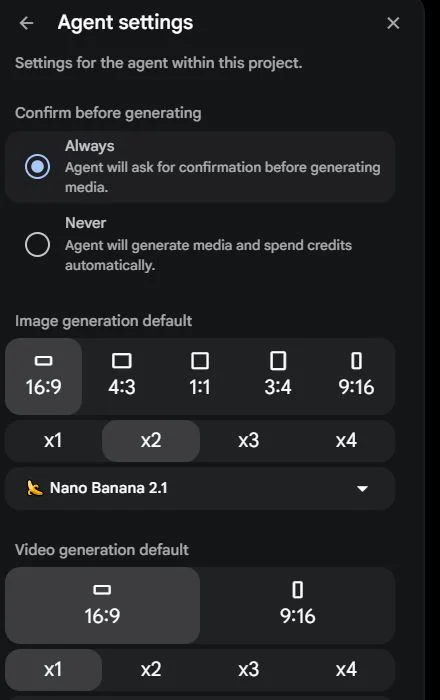
Open Settings at the bottom of the prompt box.
Confirm before generating. Leave it on Always. The Agent will then stop and tell you the model, length and exact credit cost before it spends anything. With Never, it generates and spends on its own.
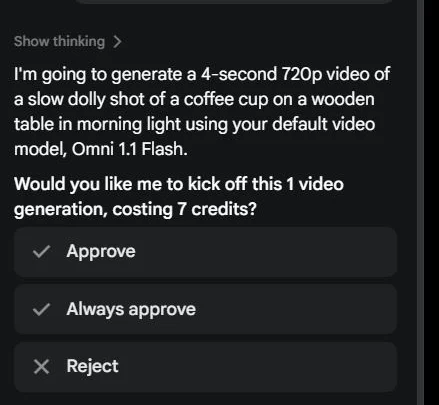
Image outputs. On my account, image generation defaulted to x2, so every image request makes two. Set it to x1 while you’re testing. The default video model was Veo 3.1 Lite; I switched it to Omni Flash for short drafts.
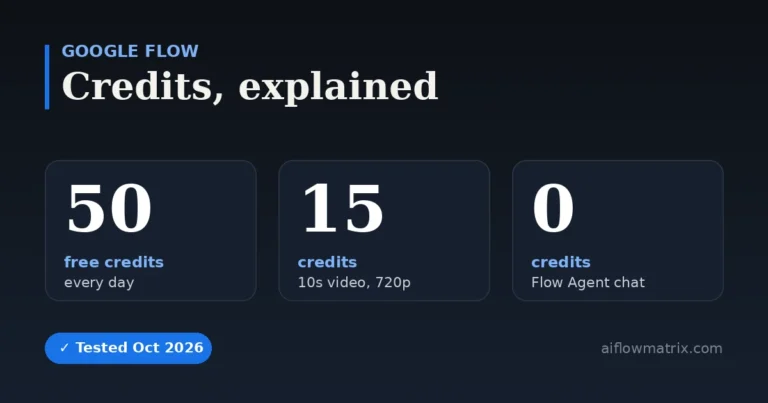
Since November 5 the Omni option is Omni Flash 1.2, billed per second, and Omni Flash 1.1 retires on December 5. At 360p, Omni is still the cheaper draft model: a 4-second clip costs 4 credits against 10 for Veo 3.1 Lite. At 720p it flips, and an 8-second Veo 3.1 Lite clip (10 credits) is cheaper than the same length on Omni (24). The credits guide has the full table.
Test 1: Does It Remember Earlier Work?
Google’s help page talks about saved sessions but says nothing about memory. So I started a new session in the project and asked:
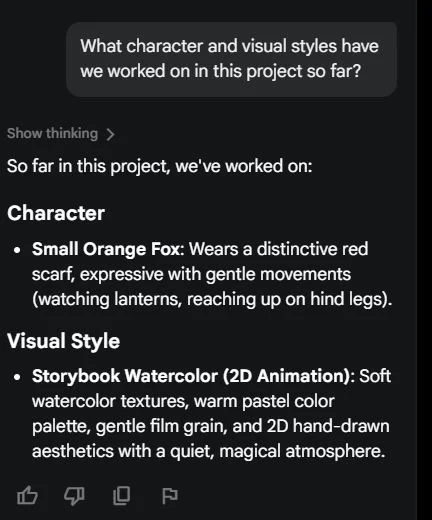
It described the fox correctly: small, orange, red scarf, reaching up on its hind legs. It also named the storybook watercolor style with the right details. But it only listed that one style. In the next test, it also treated the project as if it held a single fox video.
So the Agent does carry context into a new session, but don’t assume it has taken in everything you’ve made. If the history matters, tell it what to look at.
Test 2: Renaming and Organizing Files
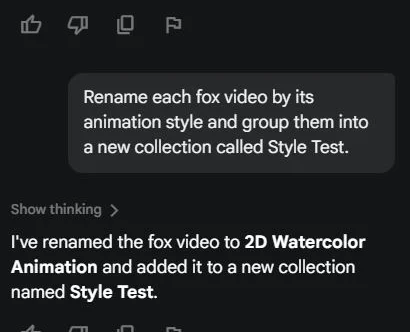
The Agent created the Style Test collection and renamed a video to 2D Watercolor Animation. I asked for “each fox video,” and it handled one. The feature works, and it saves clicking through menus, but check the result in your library before you trust it with a big cleanup.
Test 3: Agent Instructions
This is the feature I’d use most. Agent Instructions (a button at the bottom of the prompt box) sets rules for the whole project. I wrote:
Then I asked for a new scene and deliberately left out the style and the character description:
On its own, the Agent first produced a character sheet with four poses and labels for the tail, scarf and paws:

Then it made a still of the scene and animated it:
Same watercolor look, same fox, same red scarf, from a one-line prompt. The fox drinks, then lifts its head and looks off to the side, with no smearing. For anyone making a series of clips, this is what keeps them looking like they belong together. Agent Instructions set the rules in text; to pin a character down visually as well, add reference images with Ingredients, which I cover in Frames vs Ingredients in Google Flow.
Planning Costs Nothing
In an earlier session, I asked the Agent for three camera angles for a coffee-cup scene. It came back with a macro close-up of steam curling off the rim, an overhead top-down shot with diagonal shadows across the wood, and a low table-level orbit around the cup. My balance didn’t move.
That’s the best way to use it on a free plan: work out shots, angles and prompts in chat, and only spend credits when the plan is ready.
Speed, Cost and Limits
| Task | Time (my test) | Credits |
|---|---|---|
| Answer about the project | ~2 min | 0 |
| Rename + create collection | ~2 min | 0 |
| Character sheet + still + 4s 360p video | ~4 min for the video | 4 in total |
- Slow replies. Even text-only answers took about two minutes. Plan around it.
- Daily query limit. Chat is free, but each Google AI plan has a daily cap on Agent queries. Higher Ultra plans get more.
- No mobile. Google lists the Agent as web and PC only.
- Partial follow-through. “Each” and “all” requests may only cover some of your files. Check the result.
For per-model prices, see Google Flow credits explained.
I expected the Agent to be a chat window bolted onto a video tool. Agent Instructions changed my mind. Setting the style and character once, then writing short prompts that still come out on-model, is the most practical thing Flow offers for anyone making more than one clip.
The rest is useful but uneven. It plans well and for free. It organizes files, but not always all of them. It carried the main character into a new session, but not the full history of the project. And at two minutes per reply, it’s not something you chat with casually.
How I’d use it: write the Agent Instructions first, plan shots in chat, keep confirmation on, and check its file work by hand.
Which styles distort during motion, and the prompt rewrite that fixed it.
What each model costs and how many videos each plan gets you.
Flow Agent FAQ
What does the Agent do in Google Flow?
Flow Agent is a chat assistant inside your Flow project. It plans shots and prompts, generates images and videos with the model you choose, edits selected media, makes batch variations, and organizes files into collections.
Does Google Flow Agent cost credits?
Chatting with the Agent is free, but each Google AI plan has a daily limit on Agent queries. Images and videos the Agent generates use normal Flow credits.
Does Flow Agent remember previous sessions?
Partly. In my test, a new session correctly described the main character and one visual style from earlier work, but not everything made in the project. Google’s help page only mentions saved sessions, not memory.
What are Agent Instructions in Google Flow?
Project-wide rules, plus an optional reference image, that the Agent applies to every request. In my test, setting a style and character once was enough for a short prompt to come out in the right style with the right character.
How do I stop Flow Agent from spending credits automatically?
In the Agent settings, set Confirm before generating to Always. The Agent will then show the model, length and credit cost and wait for your approval.
How long does Flow Agent take to respond?
In my test, text replies took about two minutes and a 4-second video about four minutes.
Can I use Flow Agent on mobile?
Google lists Flow Agent as available on web and PC only.

One Comment